How I used AI to bridge Design Tokens to iOS Color sets
How I used AI to bridge Design Tokens to iOS Color sets
An inspiration case showing how AI can be used to build custom converters.
This article isn’t a step-by-step guide to building your own converter. In fact, the converter I’m talking about isn’t even available online.
The goal here is simply to inspire non-coders to try using AI for solving problems that require prototyping with code.
Since ChatGPT was released, I’ve been experimenting with AI. But it’s only recently that I’ve started to see its real value as a professional designer. I don’t use AI for generating images — instead, I focus on models that produce code. I’ve had a lot of success building small tools and prototype converters. These aren’t meant for production, but they’re great for communicating ideas — like how we can use JSON as a common language for design decisions across multiple tech platforms.
In this article, I’ll walk you through how I used Cursor (a code editor with built-in AI) to build a converter that transforms our JSON into iOS Color sets / Xcode asset catalogs (xassets).
And before you say, “Why not just use Style Dictionary?” — we chose a custom flat JSON format instead of Style Dictionary’s layered approach that made using Style Dictionary a bit hard.
{
  "colors": {
    "primitives": [
      {
        "name": "blue.50",
        "value": "#ebfaff"
      }
    ],
    "semantics": [
      {
        "name": "content.primary",
        "light": "midnight",
        "dark": "white"
      }
    ]
  }
}
For me, it feels almost magical to be able to build this converter “prototype” myself. Sure, I once passed a Python course and can style some basic CSS, but I’m not one of those cool hybrid designers who also code. The fact that AI now allows me to experiment with ideas that require coding means I can explore concepts that would have been out of reach for me just a year ago.
Prompting a JSON to iOS Assets converter
I’ve been designing for iOS development for less than a year. Before that, I worked purely with web solutions — where converting JSON to CSS variables is pretty straightforward. But xassets? Those were just colors you had to manually create by clicking around in an interface.
However, after a quick look in Finder, I realised that an xasset file is actually just another JSON file. So really, all we need to do is transform one JSON format into another and place it inside a structured folder containing multiple JSON files.

So I started chatting with “Claude” inside Cursor. It wasn’t a one-hit wonder, but the experience landed right in the Goldilocks zone — challenging enough to keep me engaged, but not so hard that I gave up. It was tricky to explain exactly what I wanted, but with each prompt, I got a little closer.
And then, all of a sudden — it worked.
Running the converter
./scripts/build.shNow, whenever I run build, my flat JSON file transforms into a structured set of folders filled with xcode’s asset catalog.

The converter handles both primitive tokens with a single value and semantic tokens with separate values for light and dark mode.
primitive: name, color value
semantic: Name, light value, dark value (refers to primitives)

Using the color assets
With the colors now created as color asset files, it was just a matter of dropping them into Xcode.

The colors were organised in folders similar to how a designer would see them in Figma.

One thing I added to the converter was support for folders marked as “folders with namespace.” These show up as blue folders in Xcode (not grey), which means the folder name becomes part of the full color name.
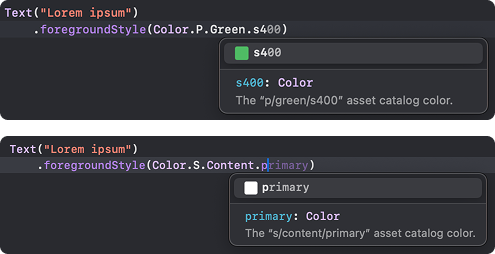
Here’s how you can use the colors via autocomplete. (As a designer, I have to say — it really reminds me of picking colors in Figma.)
And that’s basically it for turning JSON into color assets.

Buuut — if you want to take it a step further, you can use Figma’s custom code syntax to expose the correct color asset names directly in your designs.
JSON as a Bridge
But why go through JSON instead of creating color assets directly?
JSON acts as a powerful bridge between platforms. By starting from a shared source, we’re more likely to establish a common naming truth for our colors — making cross-platform alignment much easier.
iOS
Color.S.Content.primary
Web
--color-s-content-primaryAndroid
sContentPrimaryFigma
[Collection: Semantics]
Content / PrimaryThanks for reading — and if you haven’t already, try building something with the help of AI.
It’s a fun and different tool compared to figma and adobe.
Written by tapping my meat fingers on a keyboard — but translated with the help of AI.
